

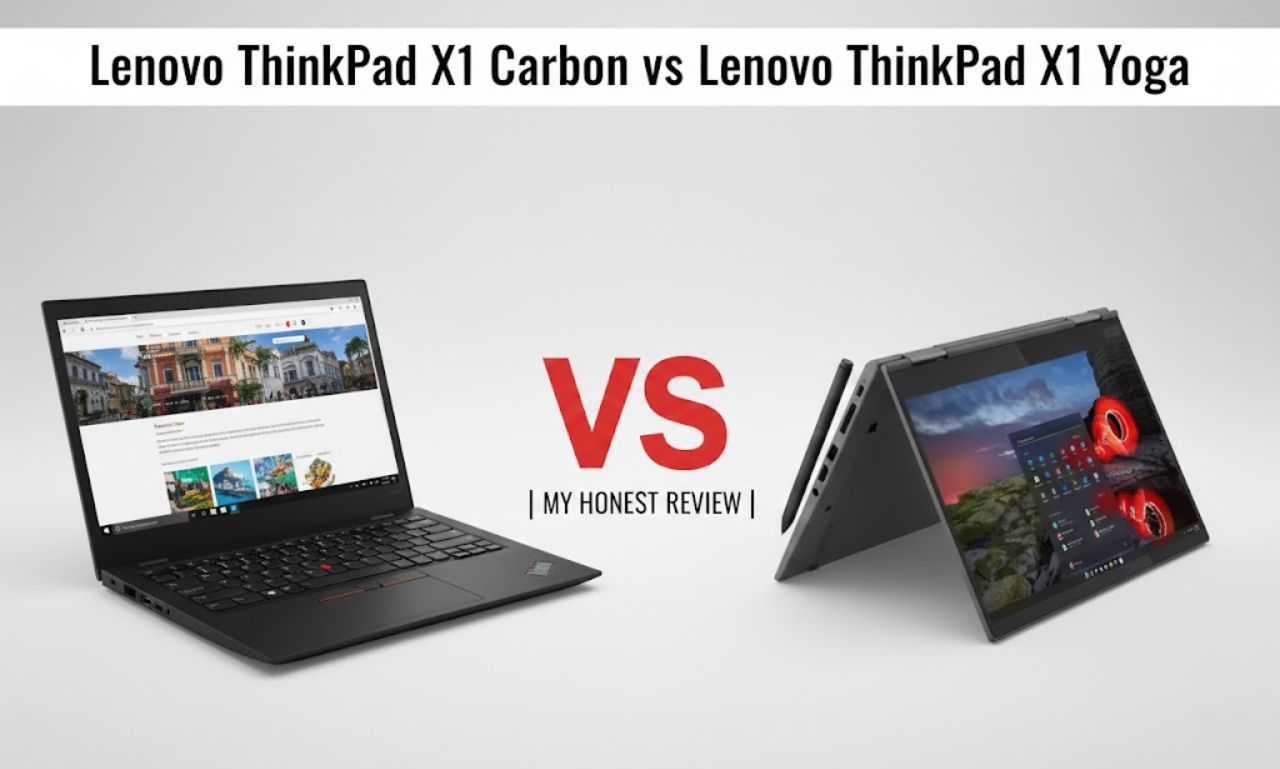
If you are confused between the ThinkPad X1 Carbon and ThinkPad X1 Yoga, you are not alone.
Many students in Dhaka ask me this question. New CSE learners ask it. Corporate job holders ask for it before joining a bank or software company.
Both laptops look similar. Both are premium. Both are expensive.
But they feel different in real life.
I have used both for long hours. I have sold them. I have seen them come back for service after 2–3 years. So this review comes from real ownership experience, not just specs.
Let’s make your decision simple.
Quick Verdict (If You’re in a Hurry)
Choose ThinkPad X1 Carbon if…
You want a light, serious work machine.
You type a lot every day.
You travel from Mirpur to Motijheel or from Dhanmondi to Gulshan, and you carry your laptop all day.
You do coding, reports, presentations, research, and office tasks.
You do not care about touch or pen.
Choose ThinkPad X1 Yoga if…
You take handwritten notes in class.
You annotate PDFs.
You present to clients and often flip your screen.
You want flexibility in one device.
My personal pick (and why)
I chose the X1 Carbon.
It feels lighter. It feels more focused. It feels like a pure productivity tool.
The Yoga is impressive, but I rarely use tablet mode. For my workflow, Carbon wins.
Why You Can Trust This Comparison
My background and what I tested
I have worked with ThinkPads for almost 10 years.
I tested both models with:
- 20–30 Chrome tabs
- VS Code and light development
- Microsoft Office
- Zoom and Google Meet
- Lightroom and Light Photoshop
- Long typing sessions (4–6 hours)
I also observed battery health after 1–2 years of use.
Who this comparison is for (and who should skip it)
This guide is for:
- University students in Bangladesh
- CSE and engineering students
- Corporate job holders
- Business owners
- Remote workers
Skip this if you want gaming or heavy 4K video editing. These are business ultrabooks, not gaming laptops.
X1 Carbon vs X1 Yoga at a Glance
Key differences in one quick view
Carbon is lighter.
Yoga has a 360-degree hinge.
Yoga includes a built-in pen.
Carbon feels more traditional and minimal.
Yoga is slightly thicker and heavier.
Performance is almost identical if specs match.
The real difference is design and flexibility.
Specs snapshot (what actually matters)
Most recent generations offer:
- Intel Core i5 or i7
- 16GB or 32GB RAM
- Fast NVMe SSD
- 14-inch 16:10 display
- Thunderbolt ports
- Wi-Fi 6 or Wi-Fi 6E
For 2026, I strongly recommend 16GB of RAM as a minimum.
Avoid 8GB. It will feel slow in 2–3 years.
Build Quality and Design Feel
First impressions in hand
The X1 Carbon feels extremely light. When you lift it, you notice the difference.
It uses carbon fiber and magnesium. It feels strong but not heavy.
The X1 Yoga uses aluminum. It feels solid and slightly cooler to touch.
Both look professional in meetings. Both fit perfectly in corporate environments.
Durability, hinge confidence, and long-term wear
Carbon has fewer moving parts.
Yoga has a complex 360-degree hinge. It is strong, but more movement means more long-term stress.
In real life, both last well. But Carbon is slightly simpler in design.
Portability: thickness, weight, and “carry-all-day” reality
If you travel daily in Dhaka traffic, weight matters.
Carbon feels easier on your shoulders.
Yoga is still portable. But during long days, that small difference becomes noticeable.
Display Experience (Where the Two Feel Most Different)
Screen quality for work (text, spreadsheets, coding)
Both offer sharp displays.
Text looks crisp. Coding feels comfortable. Excel sheets look clear.
The 16:10 aspect ratio is excellent for productivity.
Brightness, reflections, and outdoor use
If you work near windows or in cafés, brightness is important.
Go for 400 nits or above.
Touch screens are glossy. They reflect more light.
Non-touch matte screens feel easier on the eyes.
Touch and pen experience (Yoga advantage?)
Yes. This is Yoga’s biggest strength.
The pen feels responsive. Writing in OneNote feels natural.
For students in private universities or public universities, this is very useful for lecture notes.
Carbon does not offer this feature.
My take on the best display options to choose from
For most users:
- 1920×1200 resolution
- 400 nits brightness
- 16GB RAM
If you are not an editor or designer, you do not need 4K.
Higher resolution reduces battery life.
Keyboard, Trackpad, and Daily Comfort
Typing feel (travel, feedback, fatigue over long y)
Both keyboards are excellent.
ThinkPad keyboards still feel better than many modern ultrabooks.
For hours of thesis writing or coding, both are comfortable.
Carbon feels slightly more focused for typing.
Trackpad + TrackPoint: what’s better in real use
Trackpad is smooth and accurate.
TrackPoint is useful when editing documents or coding without lifting your hands.
Many ignore it at first. Later, they love it.
Tablet mode practicality (Yoga only) — honest impressions
Tablet mode looks impressive.
But most corporate users rarely use it daily.
Students and presenters benefit the most.
If you never use tablet mode, you are paying for a feature that you never use.
Performance in Real Work (Not Just Benchmarks)
Every day speed: browsing, office work, multitasking
With 16GB RAM, both feel fast.
Office, browser, Zoom, Spotify — smooth.
For business use, you will not see big differences.
Heavier tasks: photo editing, light video, dev workloads
For light coding and photo editing, both handle it well.
For Android Studio or heavier development, choose a higher RAM option.
For serious video editing, look at stronger laptops.
Thermals and fan noise: which stays cooler
Carbon usually runs slightly cooler in long typing sessions.
Yoga can get warmer because of its design and touch layer.
Fan noise is present under load, but not disturbing.
Sustained performance: what happens after 20–30 minutes
All thin laptops reduce performance under heavy load.
In normal office work, you will not notice it.
For long compiling sessions, expect mild heat.
Battery Life and Charging
My real-life battery results
With balanced brightness and Wi-Fi:
6–8 hours is realistic.
Zoom calls reduce battery faster.
Higher resolution screens drain more power.
Sleep drain, standby behavior, and reliability
Modern Windows sometimes drains the battery in sleep.
Hibernate works better if you store it overnight.
Keep drivers updated.
Charging speed and USB-C practicality on the road
Both support USB-C charging.
You can use compatible power banks.
Very helpful for long days in Dhaka traffic.
Speakers, Webcam, and Calls (WFH Reality Check)
Mic + webcam quality for meetings
Webcam quality is good for meetings.
Newer models have better low-light performance.
Mic works well in quiet rooms.
Speaker loudness and clarity
Clear sound but not very loud.
For movies or music, use headphones.
Best settings and small tweaks that improve call quality
Use front lighting.
Turn off unnecessary background apps.
Keep the camera lens clean.
These small steps improve video quality more than hardware changes.
Ports, Connectivity, and Expandability
Ports you actually use
You usually get:
USB-A
USB-C
Thunderbolt
HDMI (on many versions)
Enough for most students and office users.
Wi-Fi stability and Bluetooth accessories
Wi-Fi is stable in most environments.
Bluetooth works well with a mouse and earbuds.
Keep drivers up to date for optimal performance.
Docking and external monitors
Both support dual monitors through Thunderbolt.
Perfect for coding or stock trading setups.
Pen, 2-in-1 Features, and Note-Taking (Yoga Section)
Who actually benefits from a 2-in-1 ThinkPad
Students who write notes.
Teachers and trainers.
Consultants who present frequently.
Light creative users.
Writing/drawing feel and palm rejection
Writing feels smooth.
Palm rejection works well in most apps.
It feels natural after a few days of use.
Convertible pros and cons nobody mentions
Pros:
More flexibility. Better for presentations.
Cons:
More complex hinge. Slightly heavier. Higher cost.
Durability, Repairs, and Ownership Costs
How do they hold up after months or years?
ThinkPads age well.
Keyboards stay strong.
The body may show light marks, but the structure remains solid.
Repairability and upgrade basics
SSD is replaceable.
RAM is usually soldered. Choose 16GB or more at purchase.
Battery replacement can be done at service centers.
Warranty options and what I recommend
If buying new, choose a 3-year warranty.
If buying used in Bangladesh, check:
Battery health
Keyboard condition
Screen brightness
Hinge stability
Pricing and Value (What Makes Sense to Buy)
When Carbon is the smarter deal
If you do not need pen input.
If the price difference is small.
If you value lighter weight.
When the Yoga earns the extra cost
If you use a pen daily.
If you present often.
If you want one device for typing and writing.
New vs used vs refurbished
Refurbished business ThinkPads offer strong value in Dhaka.
Buy from trusted sellers.
Avoid very old generations, such as Intel 8th Gen or earlier.
Configurations worth buying
Recommended:
Core i5 or i7
16GB RAM
512GB SSD
400 nits display
Avoid:
8GB RAM
Very dim screens
Best For (Use-Case Based Recommendations)
Best for students
Yoga for heavy note-takers.
Carbon for typing-focused research students.
Best for writers and office users
X1 Carbon.
Light and comfortable for long writing.
Best for business travel
X1 Carbon.
Less weight. Simple design.
Best for designers and creatives (light work)
X1 Yoga for sketching and concepts.
Best for note-takers and presenters
X1 Yoga.
Best for Linux users
X1 Carbon often has strong Linux compatibility.
Always check generation support.
What I Like (and Don’t Like) About Each
What I love about the ThinkPad X1 Carbon
Very light.
Excellent keyboard.
Strong professional look.
Balanced battery life.
What I dislike about the ThinkPad X1 Carbon
No pen support.
RAM is not upgradeable.
What I love about the ThinkPad X1 Yoga
Built-in pen.
Flexible 2-in-1 design.
Premium aluminum feel.
What I dislike about the ThinkPad X1 Yoga
Slightly heavier.
More expensive.
Tablet mode is not useful for everyone.
Frequently Asked Questions (FAQ)
Is the X1 Yoga worth it over the Carbon?
Yes, if you take handwritten notes daily or present often.
No, if you only type and work on documents.
Which one lasts longer?
Both last long with proper care.
Carbon has fewer moving parts, which may help in long-term durability.
Which is better for typing all day?
Both are excellent.
Carbon feels slightly more focused for pure typing work.
Does the Yoga feel heavier in a backpack?
Yes, slightly.
During long days, you will notice the difference.
Which is better for meetings and Zoom calls?
Both are similar.
Lighting and internet speed matter more than laptop model.
Is the X1 Carbon good for CSE students?
Yes.
It handles coding, documentation, research, and presentations very well.
Choose 16GB RAM.
Is the X1 Yoga good for university classes in Bangladesh?
Yes.
Especially if you take digital notes and annotate PDFs.
Can I upgrade RAM later?
In the most recent models, RAM is soldered.
Choose the right RAM at the time of purchase.
Which is a better value in Bangladesh in 2026?
If the budget is limited, the refurbished X1 Carbon often offers better value.
If you need pen and flexibility, Yoga justifies its price.
My Final Recommendation (Honest Closing)
If you want the best “classic laptop” experience
Buy the ThinkPad X1 Carbon.
Light. Reliable. Focused.
If you want flexibility for notes and presentations
Buy the ThinkPad X1 Yoga.
More versatile.
The one I’d personally spend my money on
I would buy the X1 Carbon.
It fits my daily work style better.
What to check before you hit “buy.”
Check RAM size.
Check display brightness.
Check battery health if buying used.
Buy from a trusted seller in Dhaka.
Choose based on how you actually work.
Not based on what looks exciting online.